Quick Start
Quick Start guides developers through the first steps of using the YOMOV SDK, including installation, developer sign-in, dependency and configuration checks, and Sample import.
Full Quick Start walkthrough video:
Download and Install the SDK
-
Requirements
-
Unity 2022.3 LTS or later
-
Use the Universal Render Pipeline (URP).
-
-
First-Time Installation
-
In the Unity Editor, open Package Manager and select Add package from git URL.
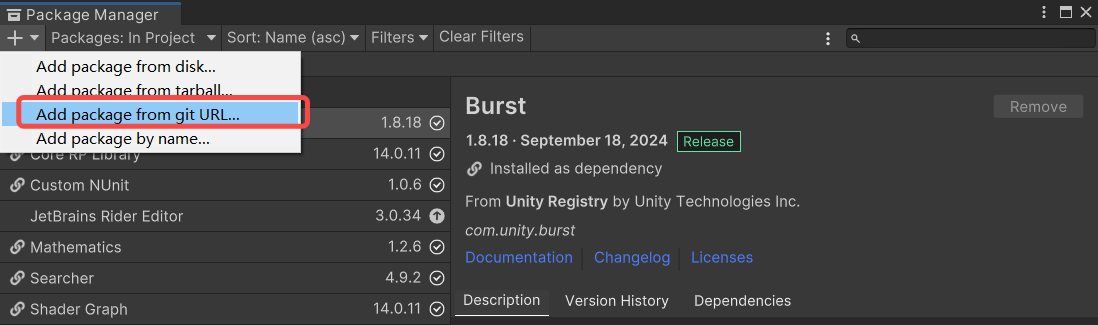
-
Enter a Git URL, then click Add to download the SDK package. YOMOV SDK Core is required and provides the core distribution capabilities and underlying dependencies. YOMOV SDK Creator is optional, provides additional features, and depends on Core.
-
YOMOV SDK Core: https://cnb.cool/configreality/YomovSDKCore.git
-
YOMOV SDK Creator: https://cnb.cool/configreality/YomovSDKCreator.git

Enter the Git URL and click Add
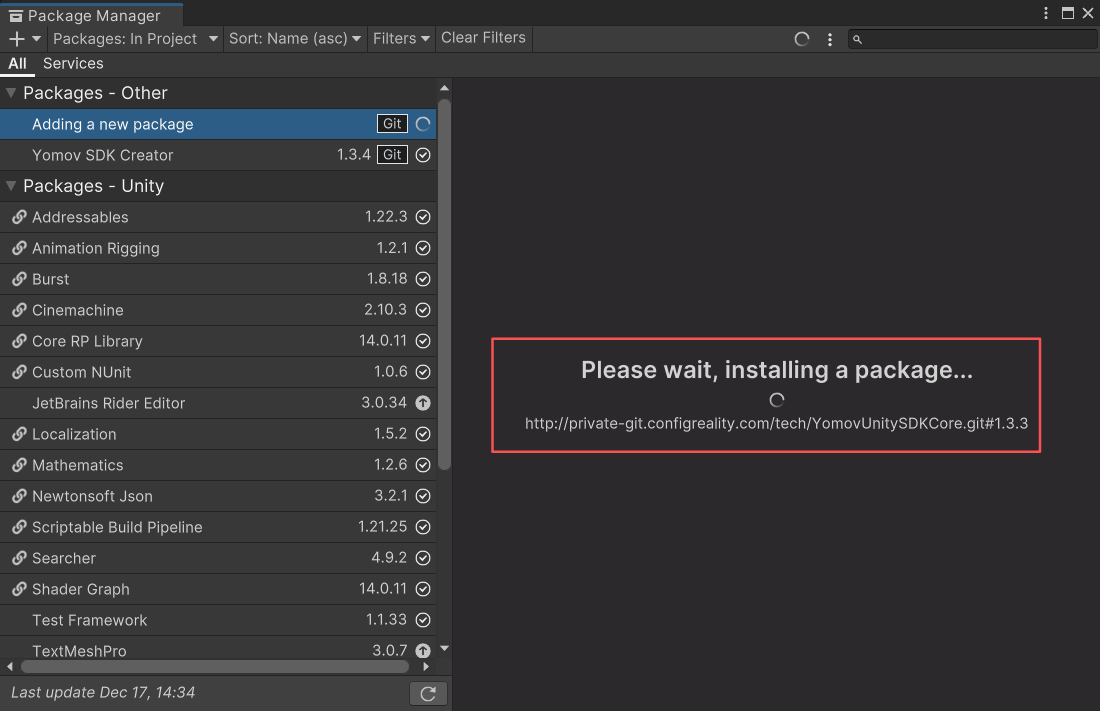
Waiting for the package installation to complete
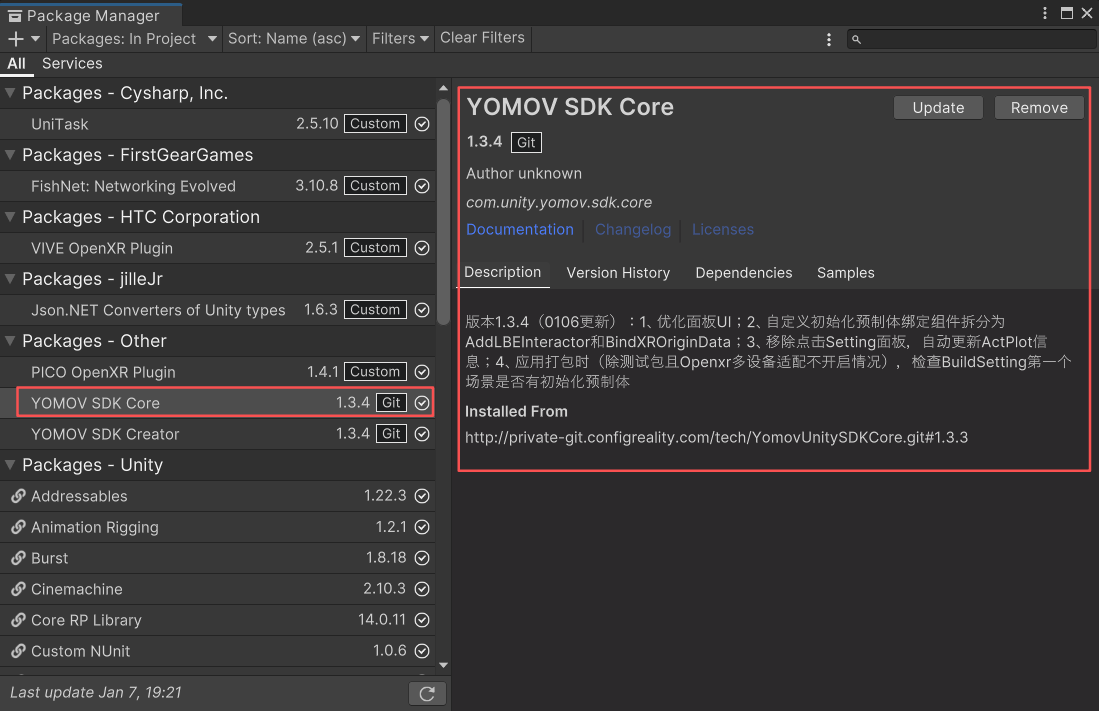
SDK packages installed
-
-
-
Update the SDK
-
When a new SDK version is available, click Update to update the SDK.
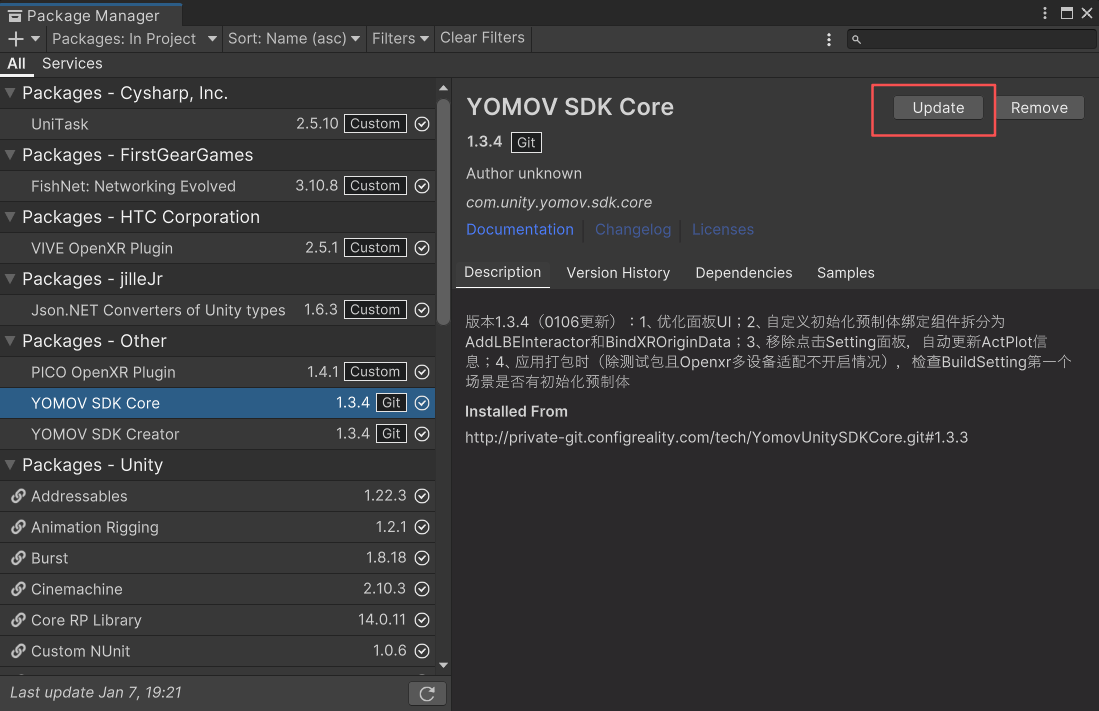
Update the SDK package
-
Developer Sign-In
After installing the SDK, sign in and authenticate before using any other SDK features.
-
After the SDK is imported, the YOMOV SDK menu appears in the Unity menu bar. Select it to open the management panel.
-
Click Log In. The panel is signed out the first time you open it and displays Not Logged In. Click Get Token to open the YOMOV Developer Platform.
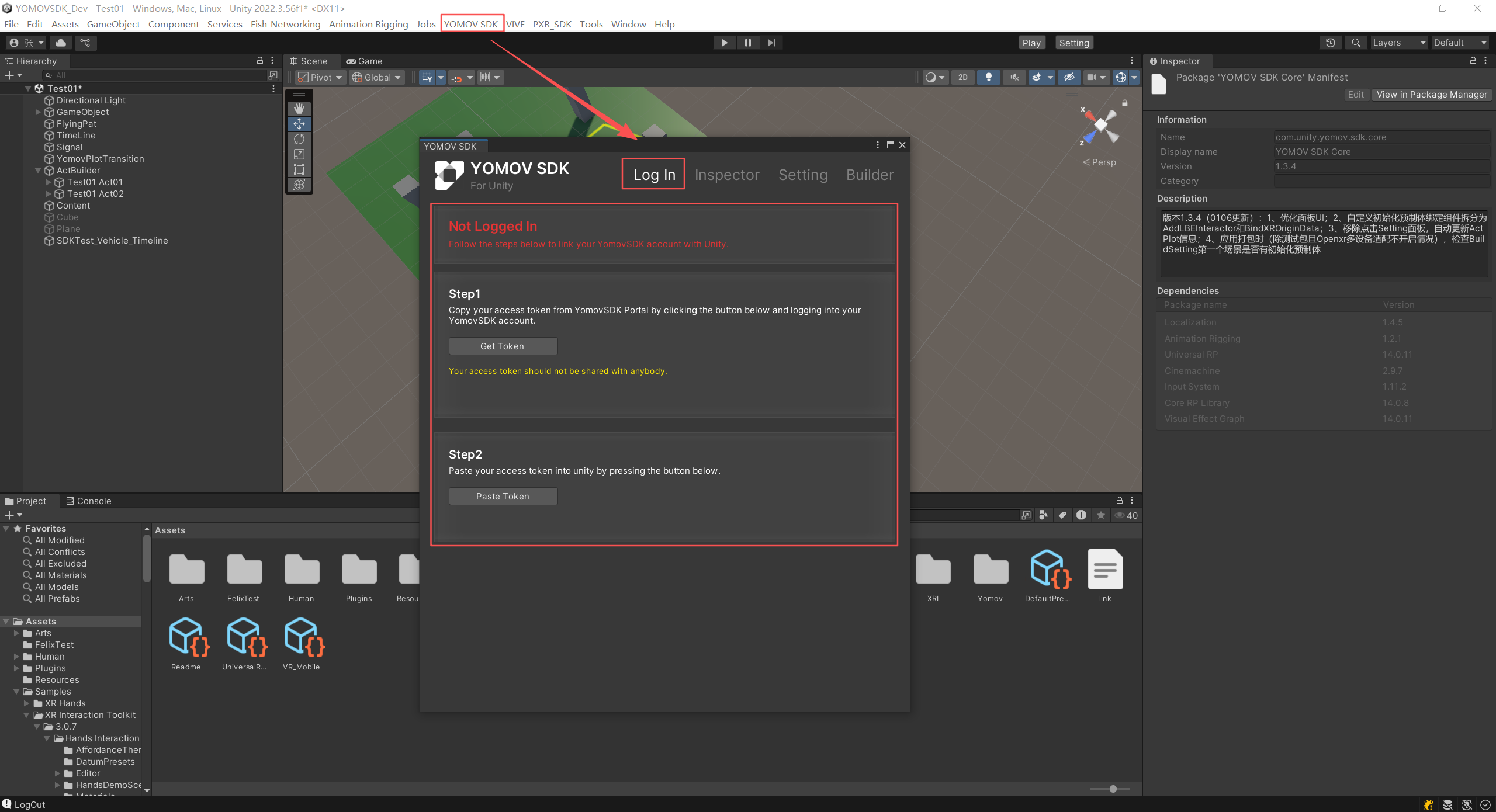
Developer sign-in entry
-
Sign in with your credentials to open the Developer Platform home page. In the upper-right corner, click Get SDK Key to obtain your SDK sign-in token.
-
If you do not have a Developer Platform account, contact your YOMOV business representative.
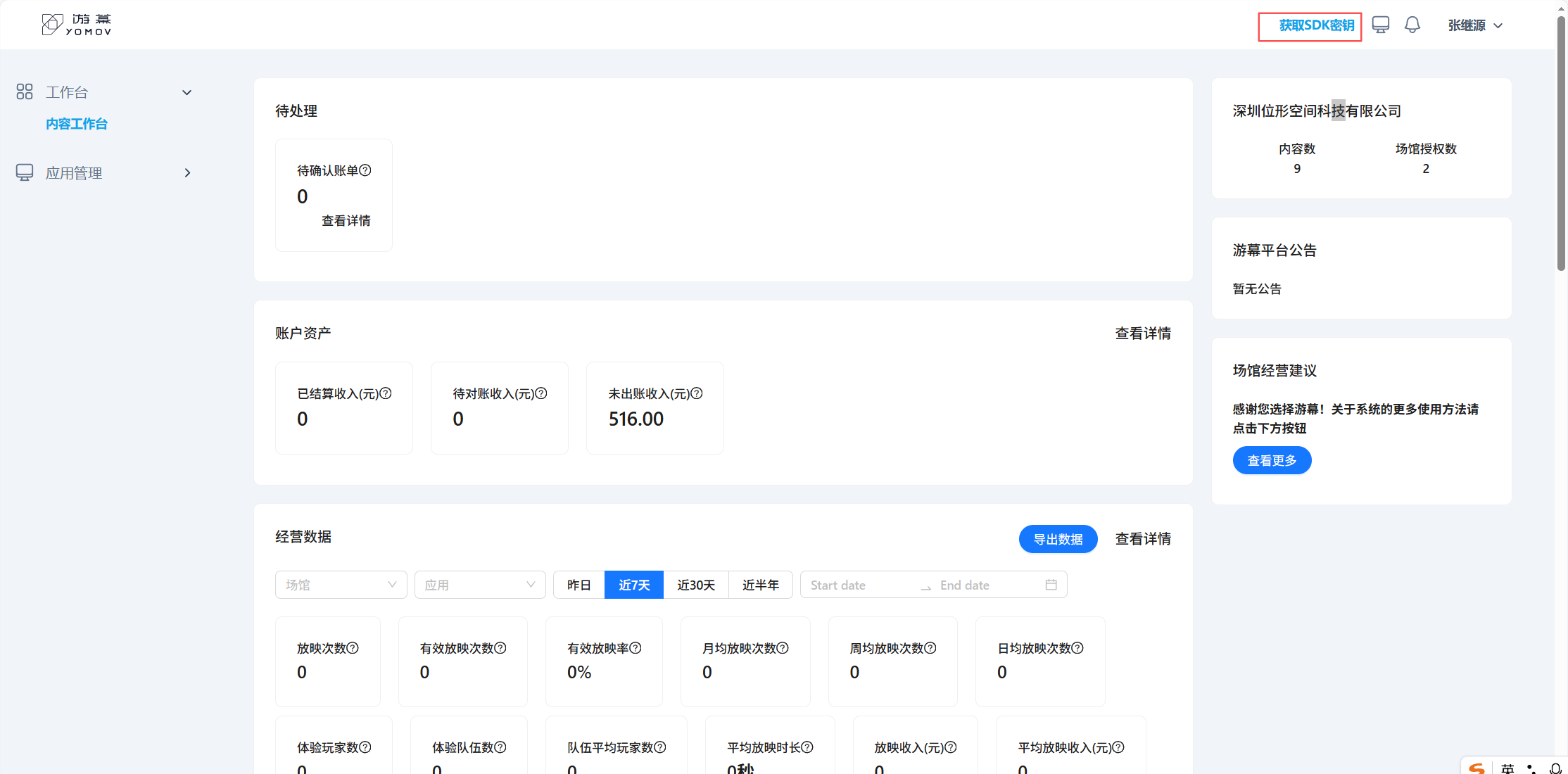
Obtain an SDK key from the Developer Platform
-
-
Return to the YOMOV SDK management panel and click Paste Token. The panel signs in to the SDK and displays your account name and ID.
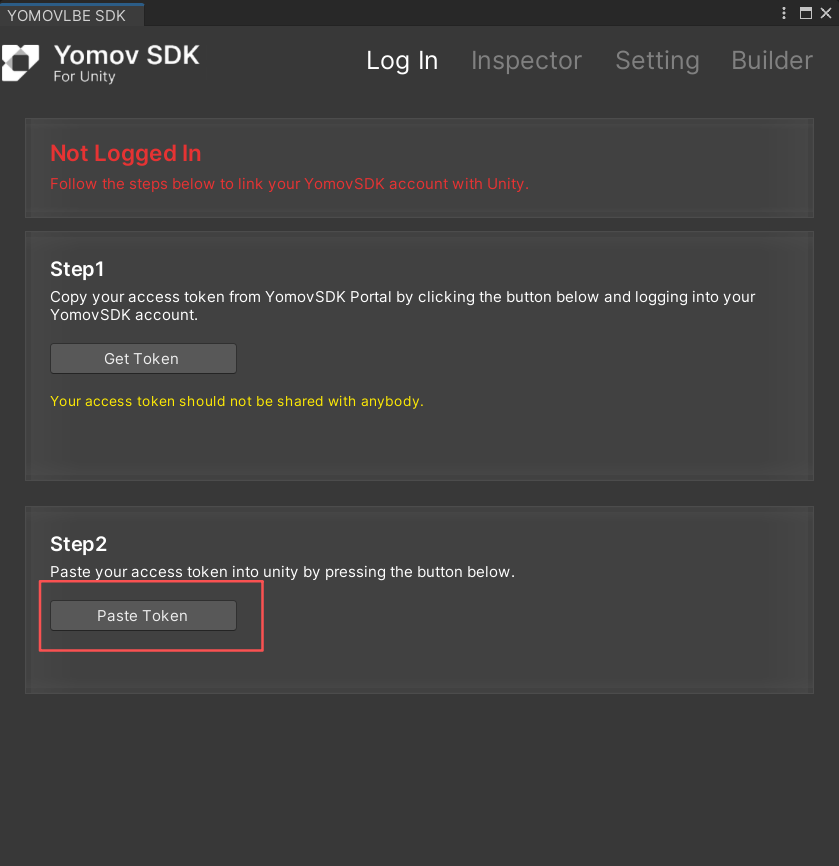
Copy the token
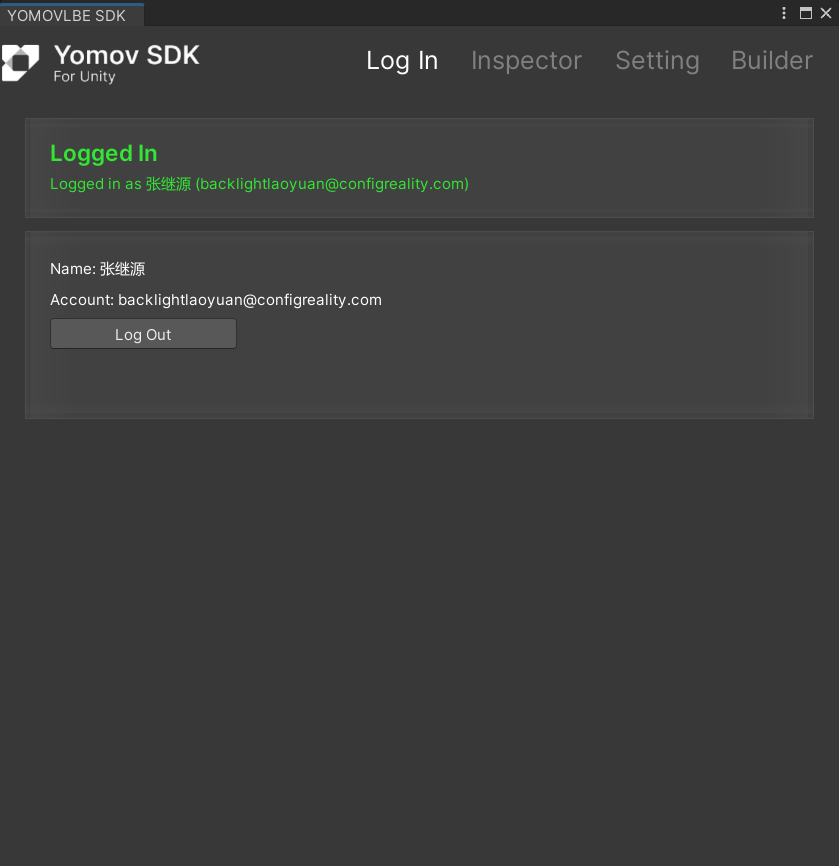
Signed in successfully
Inspector and Auto-Fix
After importing the SDK, the Inspector can automatically detect and fix issues such as an incompatible Unity version, missing or conflicting dependencies, and invalid project settings.
-
Open the YOMOV SDK management panel and select Inspector.
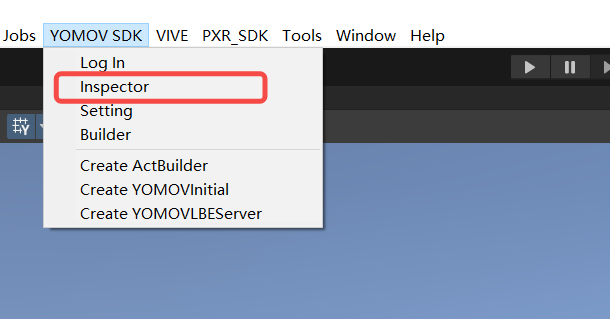
Open the SDK Inspector
-
Resolve each issue reported in the panel by clicking the corresponding action. The Inspector checks the following categories:
-
Unity Version and Render Pipeline
-
Unity 2022.3 LTS
-
Unsupported render pipeline (currently only URP is supported).
-
-
Missing or Outdated Dependencies
-
Install required dependencies such as XRI, XR Hands, and Newtonsoft Json.
-
Upgrade any installed dependency that does not meet the minimum required version.
-
Packages that cannot be redistributed with the SDK, such as Final IK, must be downloaded and installed separately from the provided link.
-
-
OpenXR and Multi-Device Support
- OpenXR and the platform SDKs required for supported devices, including PICO, YVR, and HTC.
-
Unity Project Settings
- OpenXR multi-platform settings, command-line arguments, required Layers and Tags, and URP rendering settings.
📌Note: Compatibility issues between OpenXR and Unity may cause memory usage to grow continuously.
In Project Settings > XR Plug-in Management, disable Initialize XR on Startup. This resolves the issue in most cases.
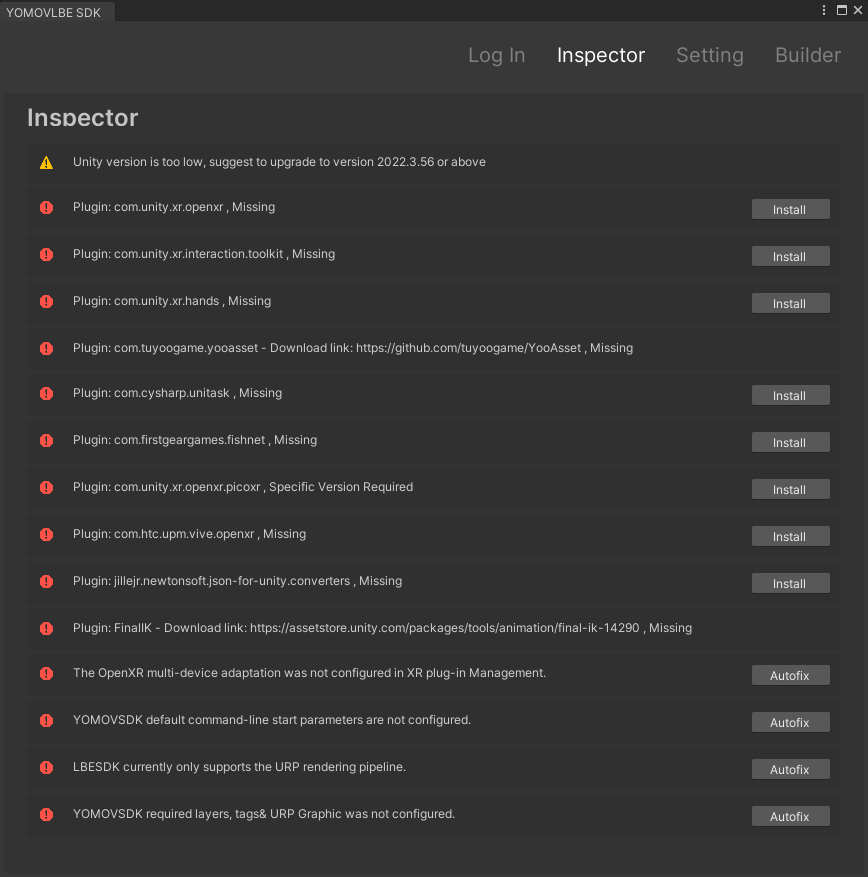
Resolve issues in the SDK Inspector
-
Import Samples
The Samples include an initialization scene and Prefabs for core features, helping you get started with the SDK quickly.
-
In Package Manager, select YOMOV SDK Core or YOMOV SDK Creator, then click Import next to the required Sample.
-
YOMOV SDK Core:
-
Sample Scenes: includes one client initialization scene and four LBE VR content scenes.
-
BridgeClient: a code example showing communication between the content server and the bridge server.
-
-
YOMOV SDK Creator:
-
Sample Scene: includes the multiplayer server scene.
-
Shared Assets: includes the standard YOMOV player model.
-
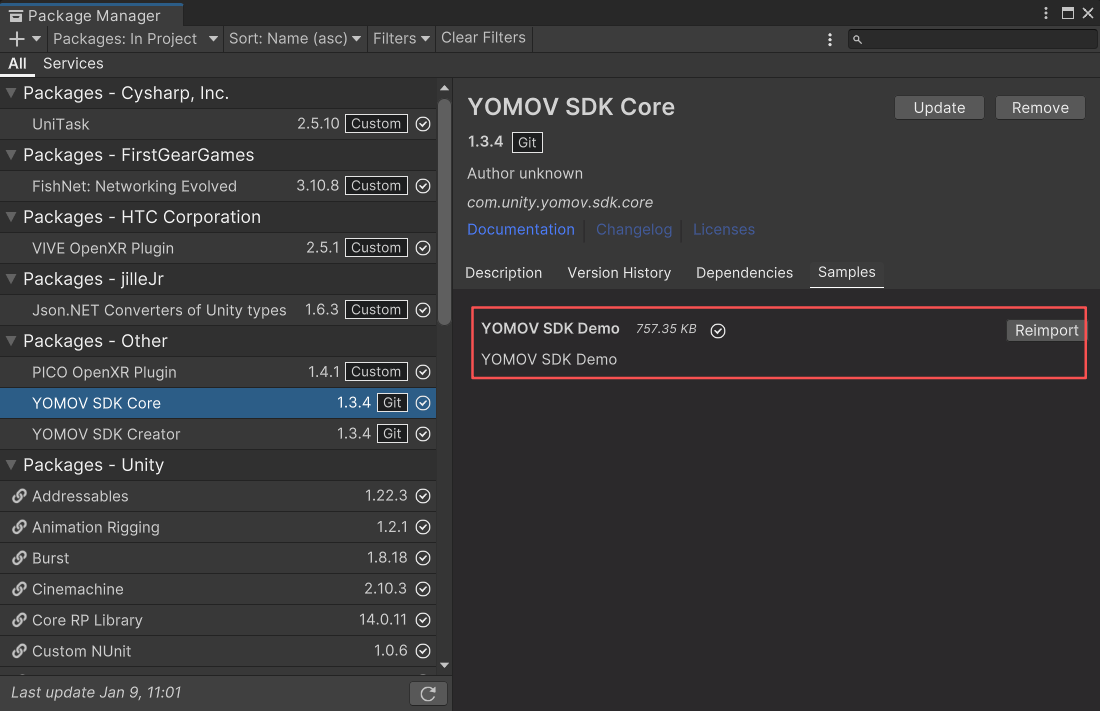
YOMOV SDK Core Samples
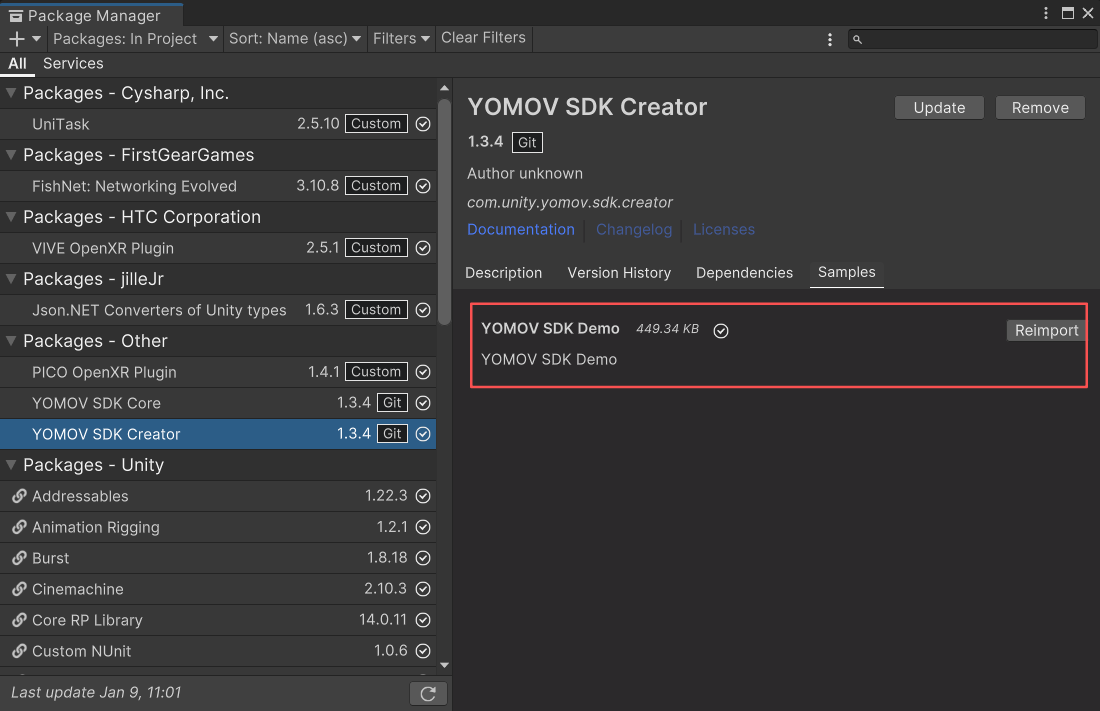
YOMOV SDK Creator Samples